


Working with JSON data is not easy when it appears as plain text with symbols. It becomes even harder when you try to organize or analyze that data quickly.
In this guide, you will learn how to convert JSON to Excel using 4 simple methods. Each method is explained step by step, so even if you are a beginner, you can follow without confusion.
By the end, you will know which method works best for your needs and how to turn raw JSON data into something useful.
What is JSON?
JSON stands for JavaScript Object Notation. It is a simple way to store data as text. We can say it's plain text, but organized in a specific way.
JSON always uses:
{ } to group data
: to connect name and value
, to separate items
That's how a JSON file looks:

After conversion, that same data would look like this in Excel: organized within clean rows and columns that you can easily filter, sort, and analyze.

Where You Will Actually See JSON
Analytics tools export raw exports in JSON format.
CRM systems store customer records as JSON files
Marketing platforms export campaign data (clicks, impressions, conversions)
Inventory systems track stock updates using JSON
Finance tools export transaction logs in JSON
In all these cases, the data comes out in a format that machines handle well, but people don’t enjoy working with.
Why would you need to convert? JSON files are used by websites, apps, and APIs to send data between computers. But humans prefer to read and analyze data in Excel, because Excel has filters, sorting, charts, and formulas.
Why can’t we read JSON easily? You can read it, but it’s not comfortable. It looks like text mixed with different symbols. They are difficult to scan and compare. Plus, we can’t easily filter them like Excel.
In short, JSON is for computers and Excel is for people.
METHOD 1: Excel Power Query (Built-In): Best for Beginners
What is Power Query? Power Query is a tool that is already inside Microsoft Excel. You do not need to download anything. It acts like a data import wizard; it reads your JSON file and helps you shape it into rows and columns inside Excel.
Requirements:
Microsoft Excel 2016, 2019, 2021, or Microsoft 365 (Windows)
Your JSON file is saved on your computer
Note: Excel for Mac has limited Power Query support
Step-by-Step Instructions
Step 1: First, open a fresh Excel file.
Step 2: After that, go to the "Data" Tab at the top. This is the tab that handles importing information from outside sources.
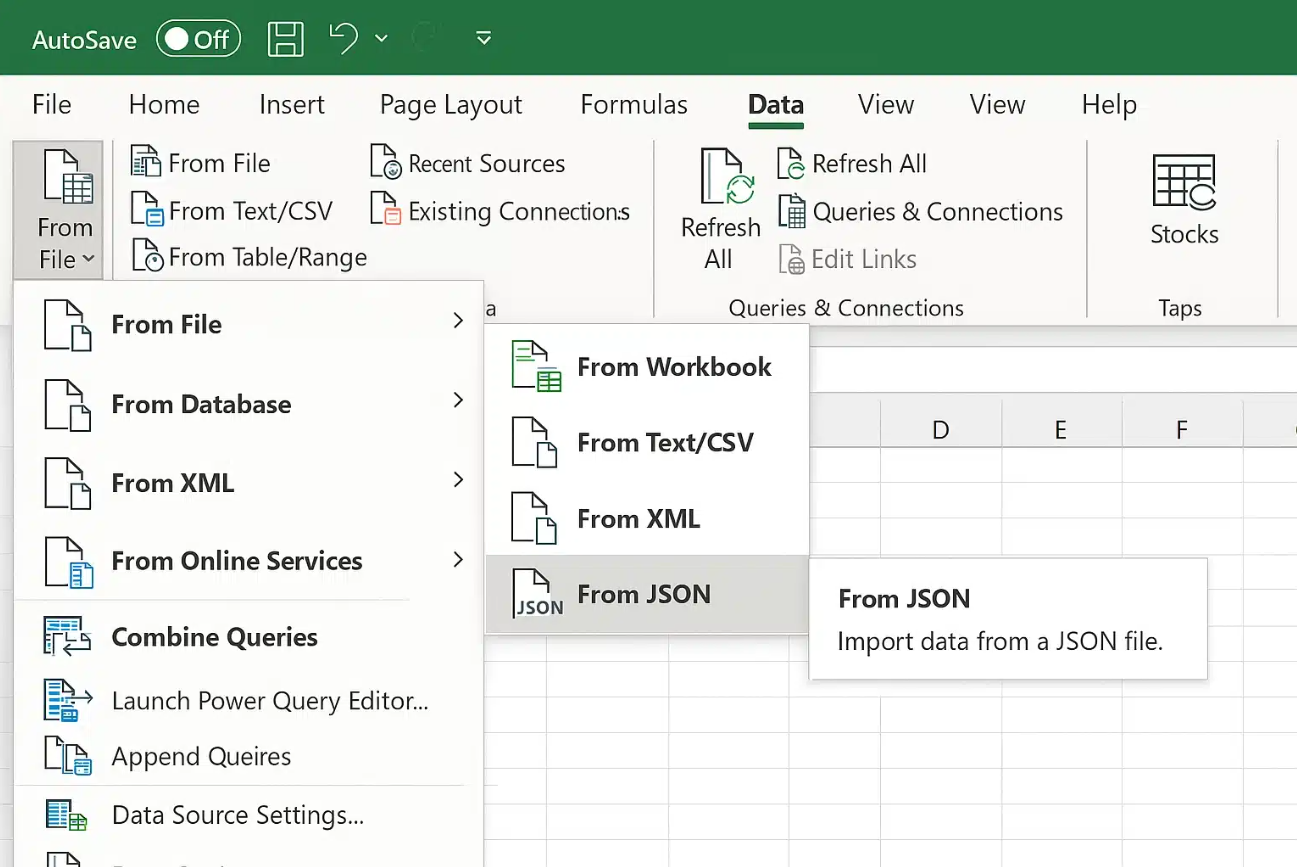
Step 3: A dropdown menu will appear with several choices. You have to click the "Get Data" option.
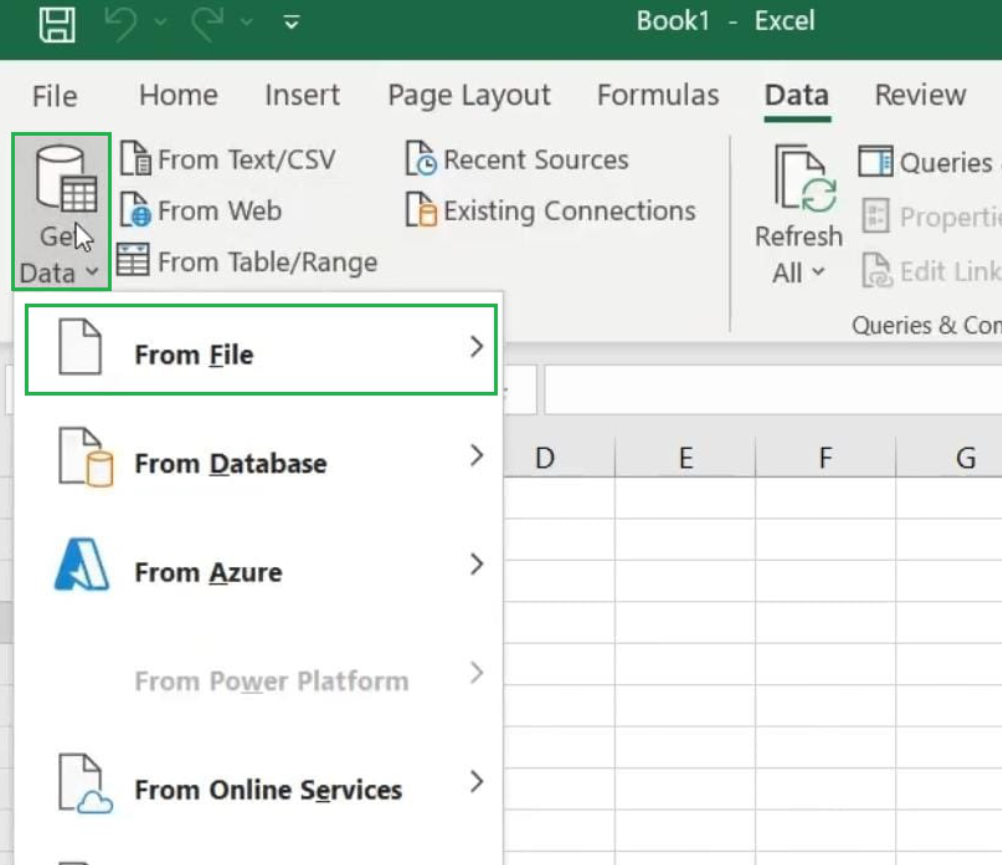
Step 4: Hover your mouse over "From File". Another small menu will slide out to the right. Within that menu, click "From JSON". This will open your computer's file browser.
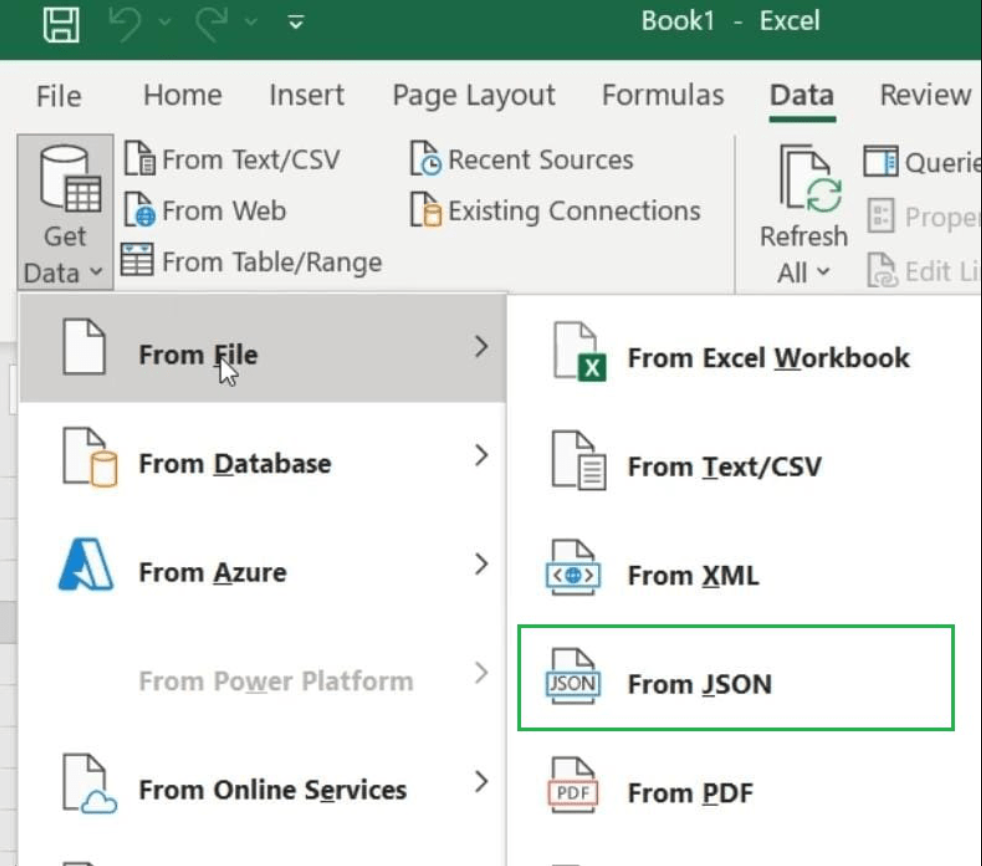
Step 5: Find and Open your JSON file. Excel will begin reading the file.
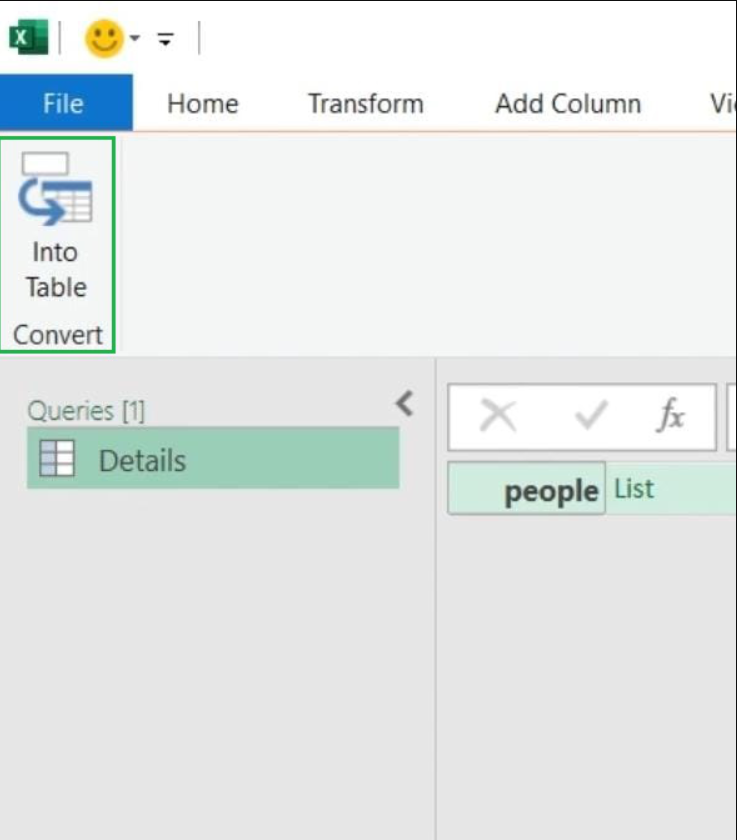
Step 6: A new window called the Power Query Editor will open. You will see something that looks like a table, but with a button called "List" or Record". This is normal; your data is there, just not expanded yet.
Step 7: In the top-left area of the Power Query window, find a button that says 'To Table' or 'Into Table.' Click it. A small dialog box may appear; just click OK. Now your data converts into table rows.
Step 8: You will see a column header with a small icon that has two arrows pointing outward. Click that icon. A list of all the fields in your JSON will appear. Select which ones you want, or keep all of them checked. Uncheck the option that says 'Use original column name as a prefix' for cleaner names. Click OK.
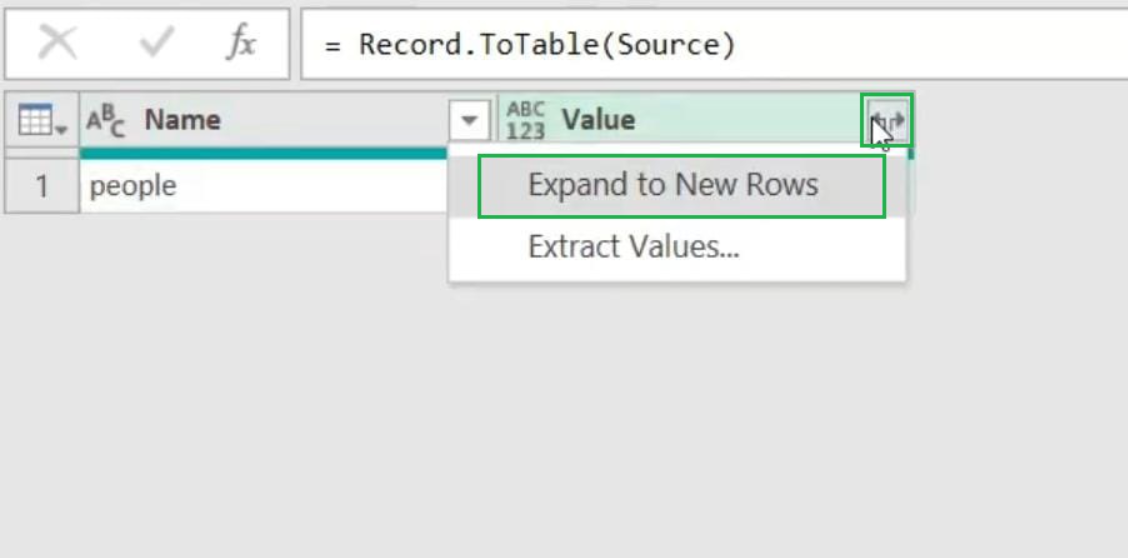
Step 9: Once you can see all your data in rows and columns in the Power Query window, click the 'Close & Load' button at the top left. Your data will be transferred to a new sheet in Excel automatically.
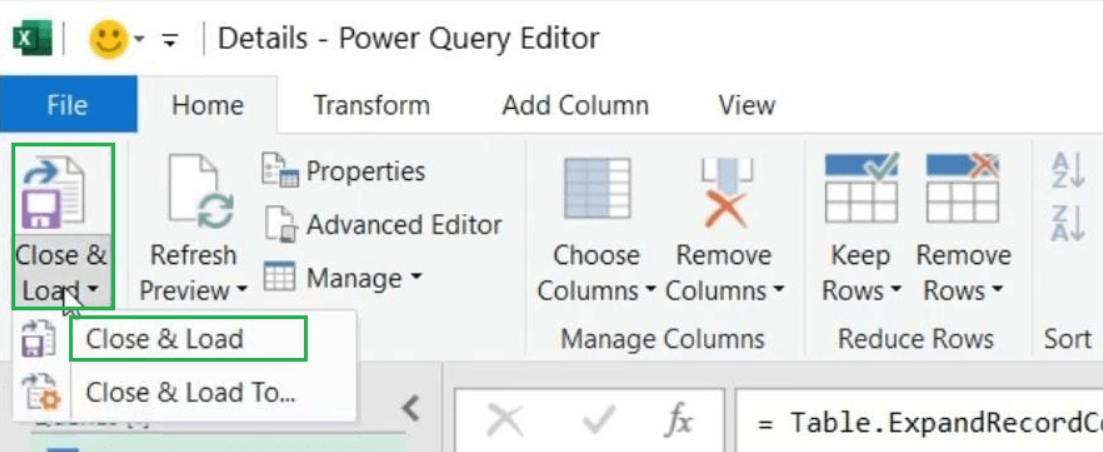
Step 10: Go to File, Save As, choose a location, name your file, and select '.xlsx' as the format. Your JSON data is now saved as an Excel spreadsheet.
Pro Tip: If your JSON file gets updated later, you don't have to repeat all steps. In Excel, go to Data, Refresh All, and Power Query will re-read the file and update all the rows automatically.
METHOD 2: Online JSON to Excel Converter
Online converters are the easiest option if you are new to this. You don't have to install anything; they will handle complicated JSON automatically. You just have to simply paste or upload your JSON, and the tools do all the heavy lifting.
Popular Free Online Tools
jsontoexcel.com
aconvert.com
tableconvert.com
Step-by-Step Instructions
Step 1: Open any browser you want: Google Chrome, Microsoft Edge, Firefox, or Safari.
Step 2: Type 'JSON to Excel converter online' in Google, or go directly to a site like jsontoexcel.com
Step 3: Paste or Upload your JSON
Most tools give you two options:
Option A: Copy your JSON text and paste it into the text box on the website
Option B: Click the 'Upload File' button and select your .json file from your computer.
Both options work equally well.
Step 4: Preview your data. Before you download, take a moment to check that the columns and rows look correct. If something looks off, look for settings to adjust.
Step 5: Choose your output format from .xlsx, .xls, or .csv. Choose. xlsx unless you have an older version of Excel.
Step 6: Click Convert/Download. The tool will process your JSON and automatically download the Excel file to your computer. Check your 'Downloads' folder if it doesn't appear right away.
Step 7: Find the downloaded file and double-click it to open in Excel. Your data will already be organized in a table with headers at the top.
Privacy Warning: If your JSON contains sensitive data (like customer information, passwords, or financial records), be careful about uploading it to public online tools. For sensitive data, use Method 1 (Power Query) or Method 3 (Python), which keep your data on your own computer.
METHOD 3: Python with Pandas Library
Python is a free programming language. Even if you've never coded before, the script for this task is very short and easy to understand. Pandas is a Python library (a package of tools) that is amazing at handling tables of data. The biggest advantage: once you write this script, you can convert any JSON file to Excel in under 5 seconds, just by running it again. Perfect for people who do this regularly.
One-Time Setup: You only need to install Python and the Pandas library once. After that, converting JSON takes only seconds every time.
Phase 1: One-Time Setup (Do This Only Once)
Step 1: Go to python.org in your browser and click the big yellow 'Download Python' button. Run the installer.
Important: During installation, check the box that says 'Add Python to PATH.' This is crucial.
Step 2: Open your command line
On Windows: Press the Windows key, type 'cmd,' and press Enter.
On Mac: Press Command + Space, type 'Terminal,' and press Enter.
A black or white window with a blinking cursor will appear; this is normal.
Step 3: In the command line window, type the following command exactly and press Enter.
When it shows 'Successfully installed,' you are ready.
Phase 2: Writing and Running the Script
Step 4: On Windows, press the Windows key, type 'Notepad,' and open it. On Mac, use TextEdit. This is where you'll write your Python script.
Step 5: Copy and paste your script.
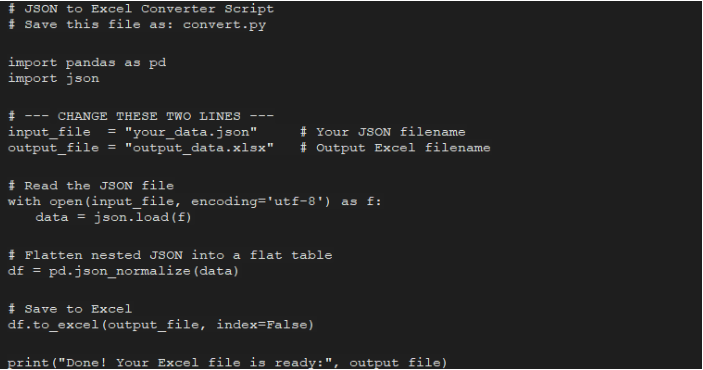
Step 6: In Notepad, go to File, Save As, Change the 'Save as type' to 'All Files'. Name the file convert.py and save it in the same folder as your JSON file. The .py extension is very important.
Step 7: In the command line window, navigate to your folder.
Type: cd Desktop (or wherever your files are)
Then, type python convert.py
Press Enter and wait a second.
Step 8: When you see "Done!" printed in the command window, look in the same folder. You'll find a new file called output_data.xlsx. Open it in Excel, and your data is ready.
METHOD 4: Excel VBA Macro
VBA stands for Visual Basic for Applications. It is a built-in programming language inside Microsoft Excel on Windows. Using VBA, you can write a small program that runs directly inside Excel and automatically reads your JSON file and populates cells. You require no external tools.
This method is perfect if you already work in Excel all day and want to automate the JSON import process with just a click of a button.
Requirement: This method only works on Microsoft Excel for Windows. It does not work on Excel for Mac or Google Sheets.
Step-by-Step Instructions
Step 1: Open Excel and Enable Developer Tab
If you don't see a 'Developer' tab in Excel,.
Click File and then Options
Click 'Continue Ribbon' on the left.
Check the box next to 'Developer' on the right.
Click OK. The Developer tab now appears in your ribbon.
Step 2: Open the VBA Editor
Click the 'Developer' tab. Then click 'Visual Basic.' This opens the VBA editor, which is a special window where you write code. You only need to paste the code here.
Step 3: In the VBA editor, look at the left panel. Right-click on your workbook name (e.g., 'VBAProject (Book1)'). Click Insert and then Module. A blank white area will appear on the right where you'll be pasting your code.
Step 4: Click anywhere in the blank white area on the right, then paste this code.
Step 5: Press F5 or click the green Play button at the top to run the macro. A file selection dialog will appear. Browse to your JSON file and click Open.
Step 6: For convenience, you can add a button to your Excel sheet:
Go to the Developer tab and click Insert.
After that, select Button.
Draw the button on your sheet
When asked to assign a macro, select 'ImportJSONtoExcel.'
Now you can convert JSON with a single click anytime!
Quick Decision Guide
Complete beginner? Use Method 2 (Online Tool): no setup, works instantly.
Excel user. Simple JSON? Use Method 1 (Power Query): built right into Excel
Do this weekly or for big files? Use Method 3 (Python): automates everything
Heavy Excel user on Windows? Use Method 4 (VBA): run it from inside Excel
Pro Tips for Better Results
Validate your JSON first: Before converting, don't forget to paste your JSON into jsonlint.com to check for errors. A single missing comma or bracket can break the conversion.
Keep a backup: Always keep the original .json file safe. Once converted to Excel, going back to JSON requires separate steps.
Use .xlsx, not. xis: The .xlsx format supports over 1 million rows, colors, and formulas. The old .xls format is limited to 65,536 rows.
Format after import: Once your data is in Excel, select all columns and use HOME, Format, AutoFit Column Width to make everything readable.
Add filters: Click on any cell in your data, then go to Data, then Filter. Now you can sort and filter your JSON-converted data like a pro.
For large files: If your JSON file is over 10MB, use Python (Method 3); it handles large data much faster than Excel's Power Query.
Conclusion
This JSON to Excel converter guide makes your work easier. Instead of dealing with raw text, you get a structured table that you can read and manage without effort.
Start with the method that feels simple to you. Once you try it, you'll see how quickly JSON data turns into a clean Excel sheet ready for analysis.
Latest Blogs
8 $100 Billion AI Automation Boom: Why Businesses Are Investing More in 2026
 CISSP vs. CISA: Which Cybersecurity Certification Controls Your Career?
 What is Continual Learning in AI and Machine Learning?
  What are the Major Benefits of Online DBA Programs?
 CMAT 2027: Exam Date, Syllabus, Exam Pattern, Preparation Tips & FAQs
 Why Is Nursing in Demand in 2026? Trends Driving the Need for More Nurses
 Why more Indian Students are Opting for Doctoral Degrees
 ChatGPT Vs Claude (2026 Guide)

Rizwana Khan
Philosophy Master’s graduate, AI-certified professional, and content strategist with strong expertise in storytelling, audience psychology, and AI-assisted communication. Rizwana Khan specializes in prompt engineering, SEO content, thought leadership, and brand communication that feels natural, engaging, and audience-focused. Currently working as a Senior Content Executive at SNVA Veranda, she creates compelling content across artificial intelligence, humanities, data analytics, and emerging technology topics. Known for turning complicated ideas into relatable narratives, Rizwana combines creativity, strategy, and modern AI tools to build content that informs, connects, and performs.